Google Drive
Logfly allows you to use Google Drive with maximum security thanks to Google-verified authentication. Use of Google Drive is strictly limited to the logbook you have uploaded. Logfly cannot access other folders or files.
View the Privacy Policy page
How it works
Once you have logged in and confirmed the Google consent screen, your logbook – which has been stored on your local drive until now – will be copied to Google Drive.
This operation grants the Logfly app permission to read, write to and edit the logbook directly on Google Drive:
- It is no longer necessary to ensure that the local logbook is synchronised with the one stored on Google Drive
- Logfly will be able to write to and edit the flight log directly from any device.
Warning
Manually transferring the logbook to Google Drive by simply copying it will allow Logfly to perform read-only operations. It will not be possible to add or edit a flight in the Google Drive logbook.
Set-up
When you open the logbook, select Connect to Google Drive.
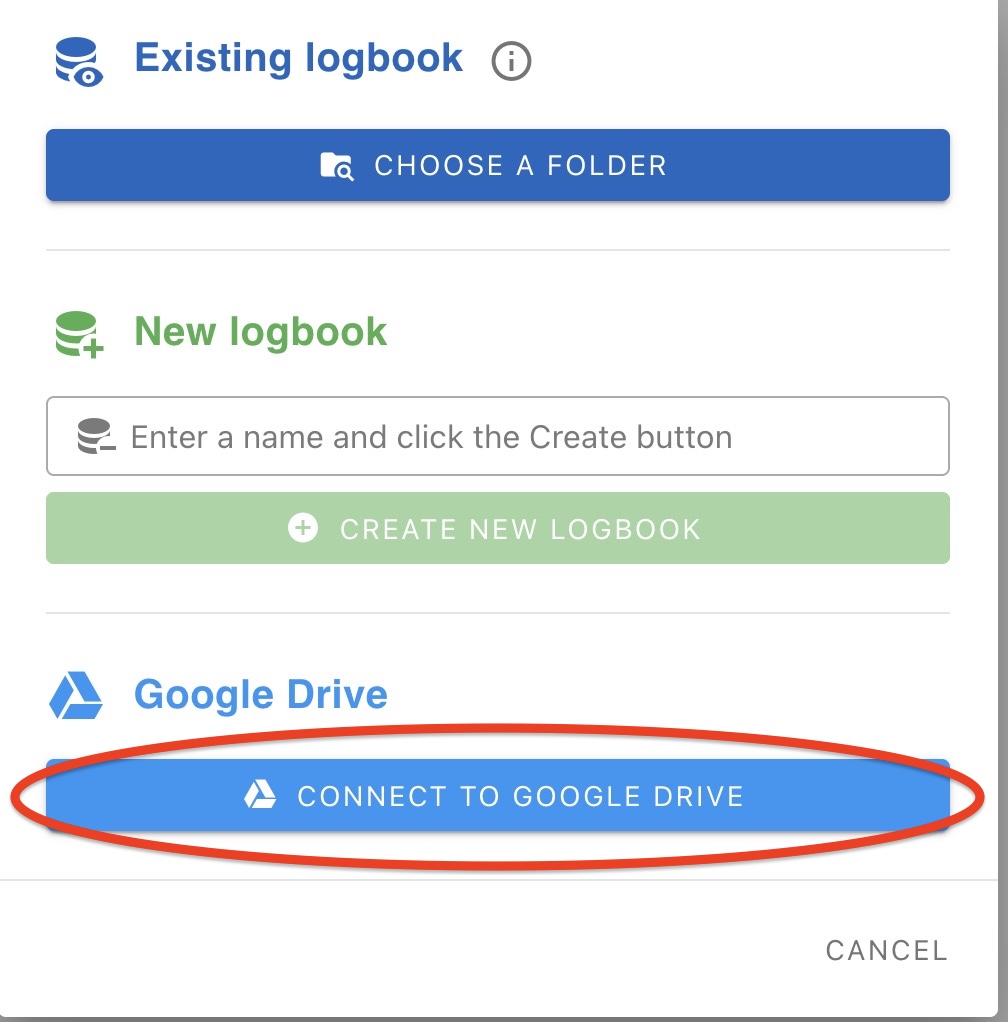
The first time you log in, you’ll need to sign in using your Google password. After that, you’ll be logged in automatically. Once the address book has been transferred, simply click the ‘Reopen’ button.
Watch this video for a guide on how to set it up
Logbook backup
Once your logbook has been exported to Google Drive, it is easy to create backups using the database export tool. See the page Export Import