Tag
Logfly allows you to "mark" a flight by assigning a color label.
You can assign your chosen label to each of the available labels.
Marking
The "marking" of a flight is done by the Tag option in the contextual menu.
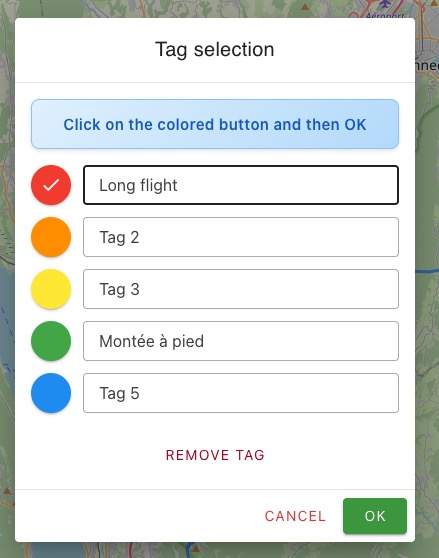
Click on the color patch of your choice AND click on the Validate button.
Label
By default, the label is Tag 1, Tag 2... You can modify it before clicking on the Validate button. This new label will be assigned to all flights marked with the color patch.
Display
The color patch appears on the selected flight. The label of the tag is displayed in the About tab.
Warning
It's the color of the patch that is assigned to the flight. If you change the label of a patch, it's the last label attributed that will appear when filtering.
Removal
When a flight is marked, click on the Tag button in the About tab. In the marking window, the Remove tag button is active.
Filtering
You can apply a filter to display all flights marked with the same tag.
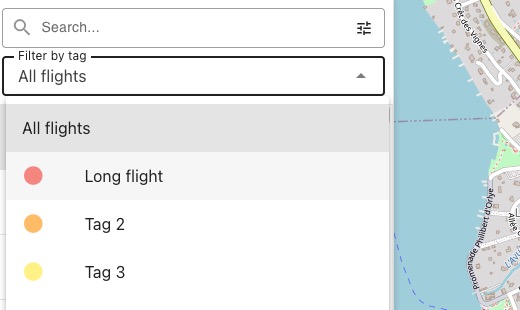
A information bubble displaying the number of flights and the corresponding hours appears at the top of the window.
Click on All Flights to return to the display of all flights
Info
Label updates are not immediate; you will need to exit the notebook and come back to it for an updated list.