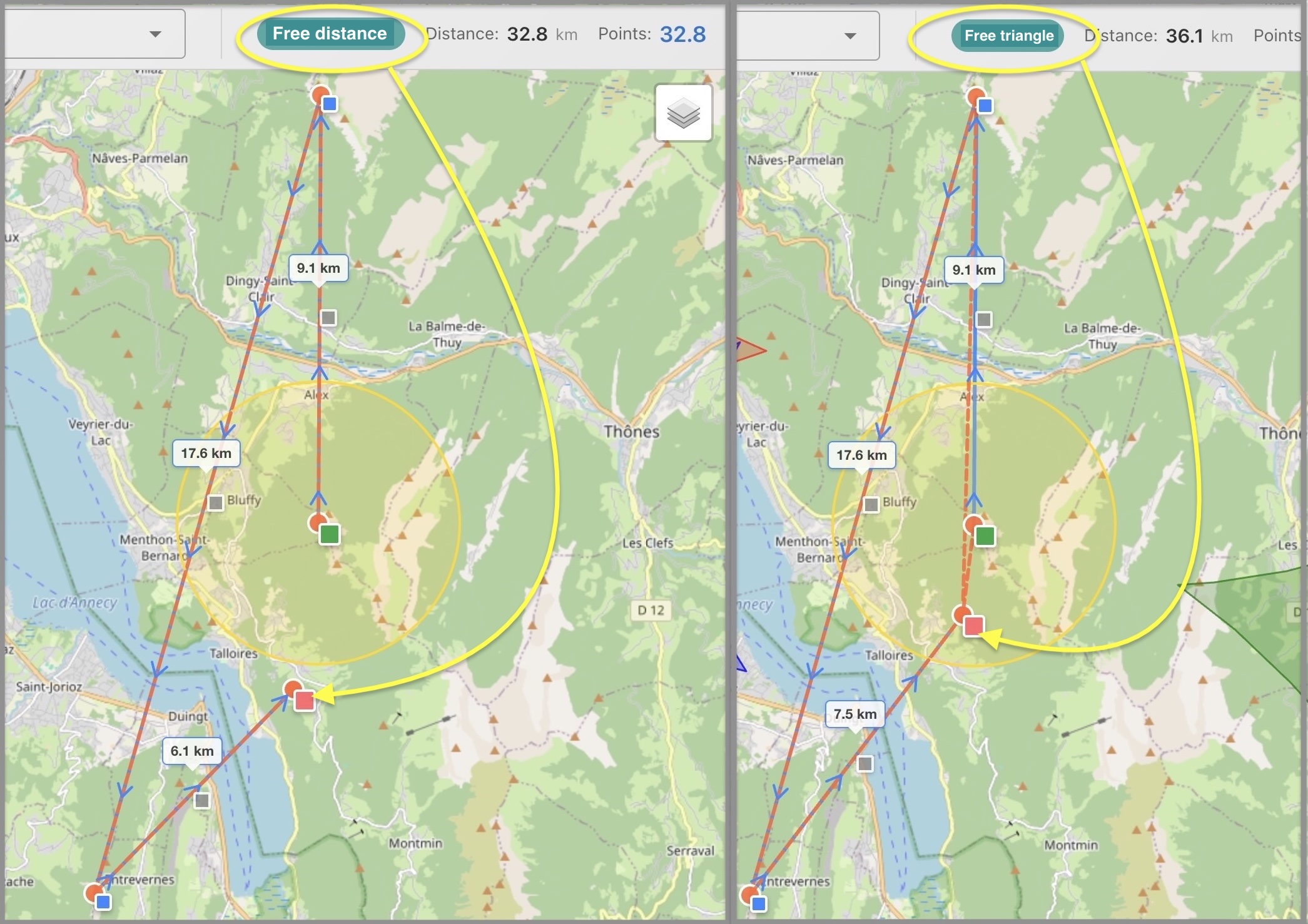
Route Drawing
A route is composed of segments. To define a segment, click on the button  . The cursor turns into a cross. On the map, click on the desired starting point. The mouse pointer is linked to the last point by a dotted line. Click again to define a new segment point.
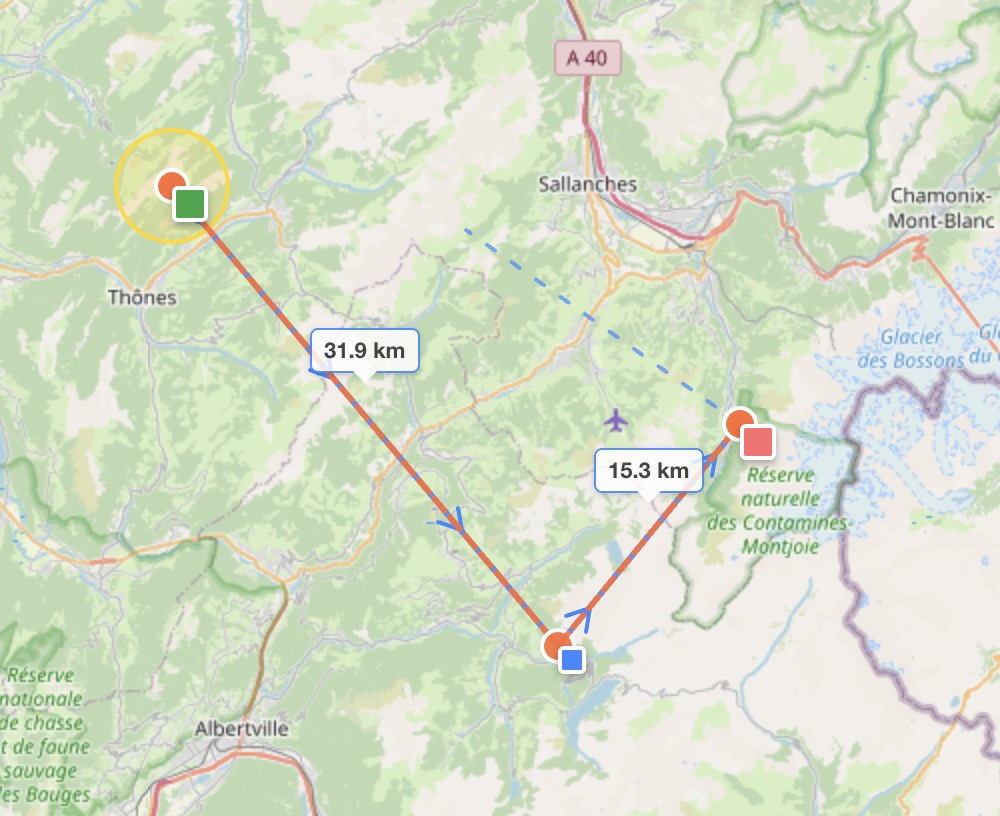
The distance between the two points is displayed. You can add multiple segments in this way. To finish drawing the route, press the Esc key. The mouse cursor is released and becomes a map movement cursor again.
Tip
In Edit mode, you can always move the map by holding down the left mouse button
The total length of the route is displayed on the last point and updated in the information bar.
Resuming Tracing
To resume tracing, click on the last point of the route while holding down the Control (Win, Linux) or Command (Mac) key. The mouse pointer is again linked to the last point by a dotted line.
Insertion
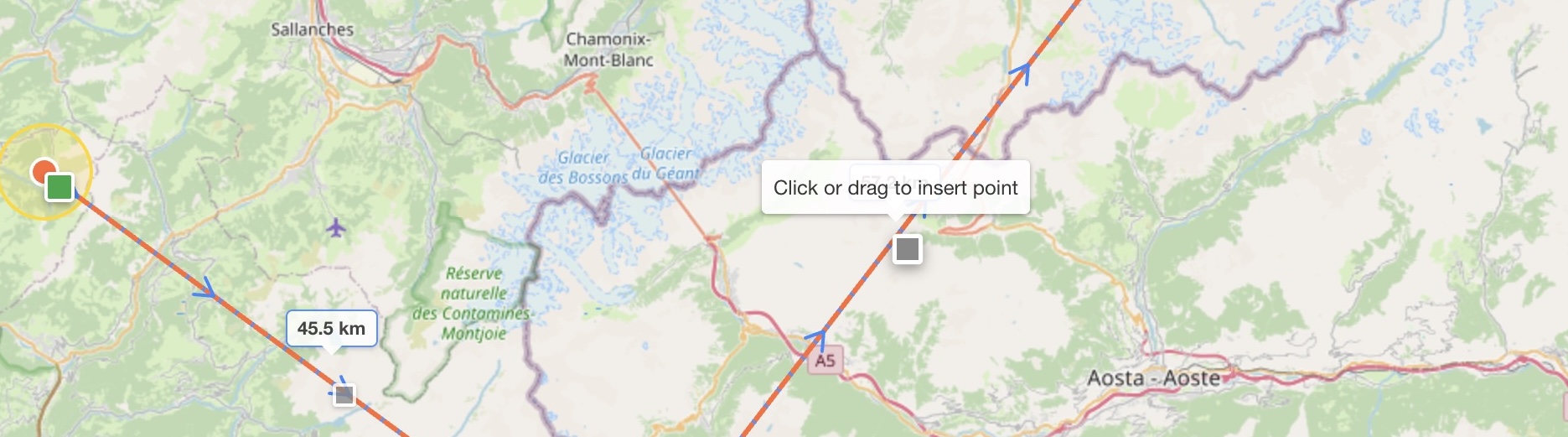
Each segment of the route contains a central square that will allow you to expand the road. Click on this square in the middle of a segment and drag and drop to the desired location.
Deletion
Click on the blue square at the point to be deleted. The next point immediately after the starting point cannot be deleted.
Terminal Circle
From the second point onwards, a yellow circle appears. This will be the circle to reach for completing the triangle course. The diameter of this circle depends on the scoring type adopted.