Oudie GPS
The Oudie GPS must be connected to the computer. To have it recognized by the computer, follow the specific manual instructions for the model used. The procedure varies depending on the model. For model 3, you need to go to the USB option and select mass storage.
Upon clicking Import / Usb GPS / Oudie, a window with instructions appears:
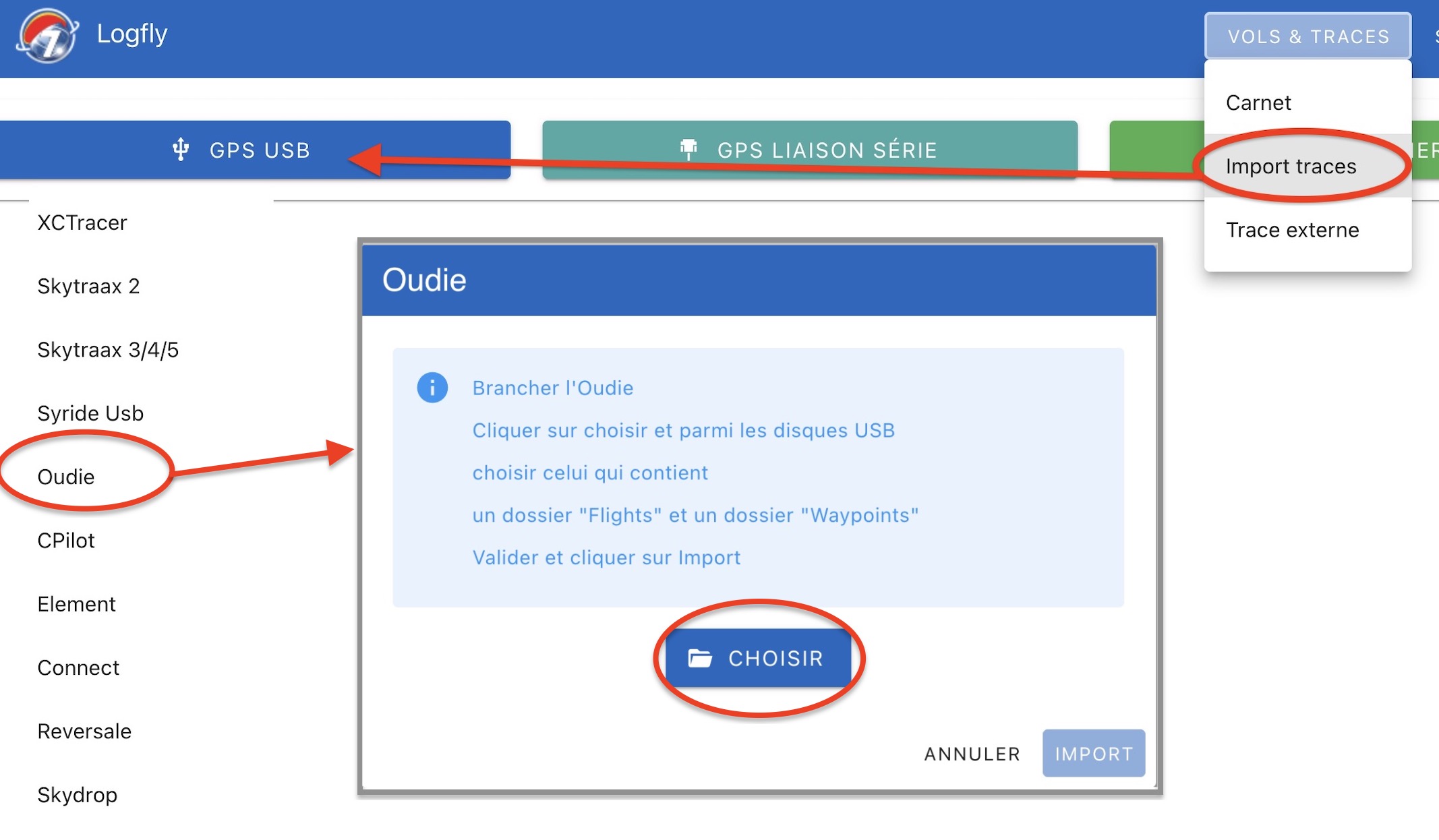
Click on the Choose button. Using the file selector, go to the Oudie disk. To recognize it:
- A folder called Flights
- A folder called Waypoints
- A folder called Airfields and Airspace
Select the Flights folder and allow Logfly to explore this folder:
The name of the selected folder appears in green. Click on Import to launch the exploration process. The procedure may take longer or shorter. Although seen as a USB key, reading operations are slower than on a real USB key. The flight log table from the GPS is displayed like in previous versions.
Import into the logbook
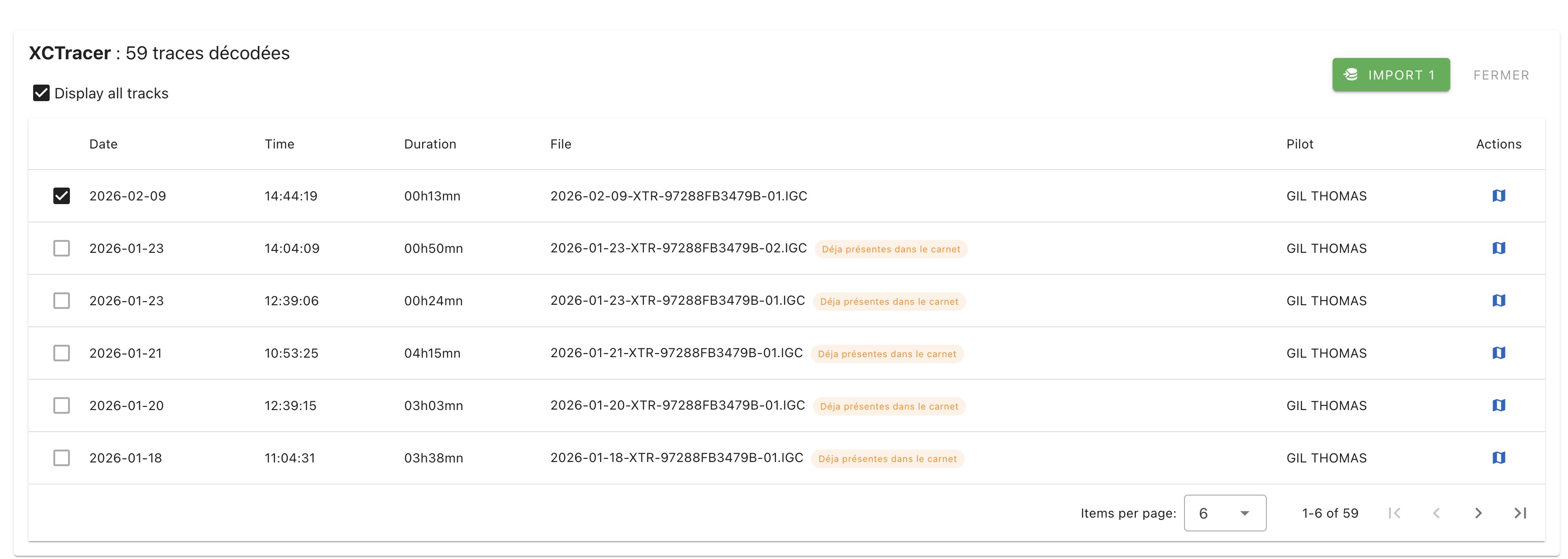
A list of flights present in the GPS is shown. Only the flights not in the logbook are checked. After verification, click on the green Import button displaying the number of selected flights:
Warning
Don't forget to eject the Oudie disk before disconnecting it