CPilot
On the device, access the connections page by pressing the "Connections" key located in the main menu. Choose USB Connection. Connect the GPS to the computer. If the connection cable was previously connected, it will need to be disconnected and reconnected to establish a connection.
Upon clicking on Import / Usb GPS / CPilot, a window with instructions appears:
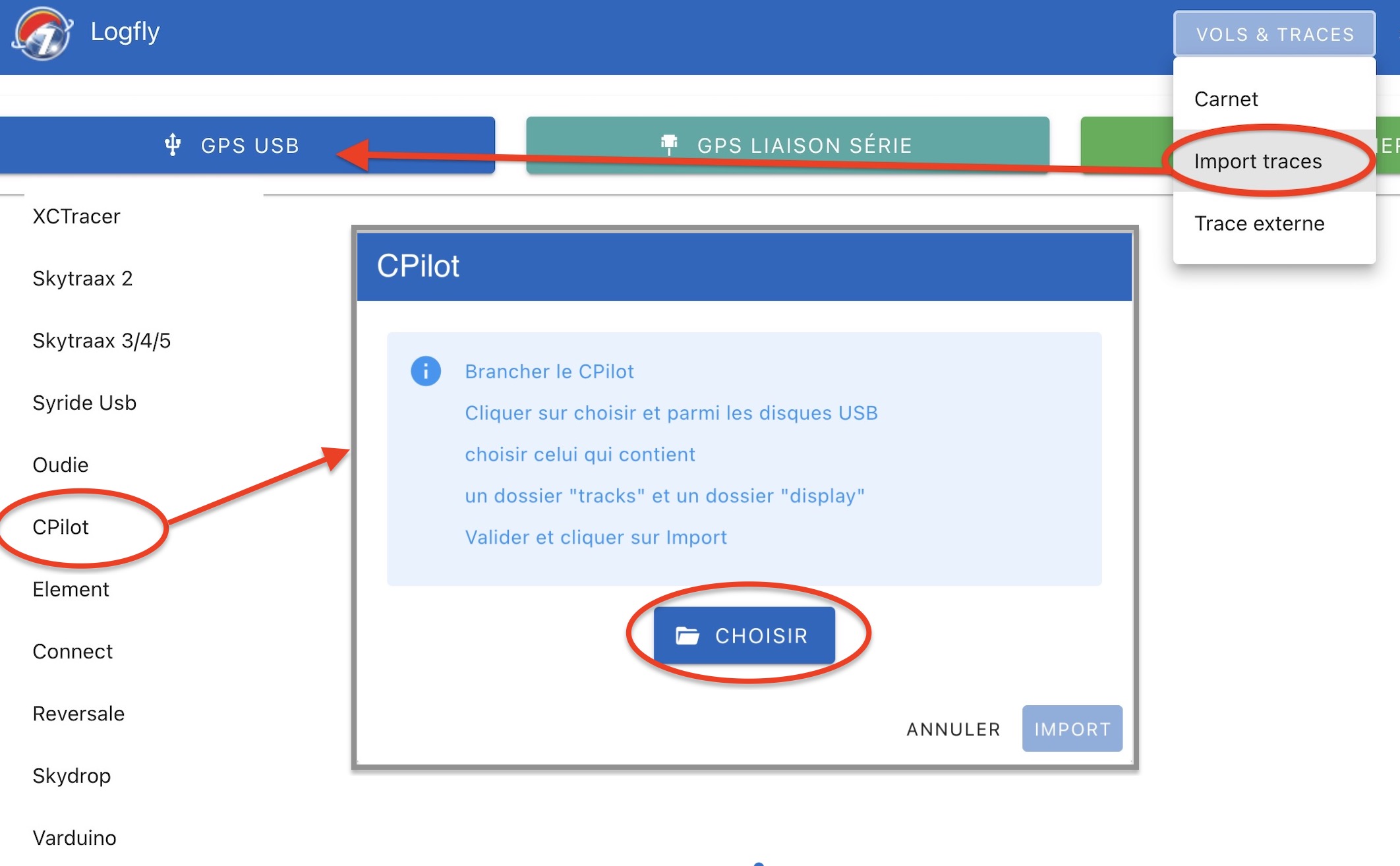
Click on the Choose button. Using the file selector, navigate to the CPilot disk. To recognize it:
- A folder named tracks
- A folder named displays
Select the tracks folder and authorize Logfly to explore this folder:
The name of the selected folder appears in green. Click on Import to launch the exploration process. The process may take longer or shorter depending on the speed of your device. Although seen as a USB key, the reading operations are less fast than on a real USB key.
The GPS flight table is displayed, similar to previous versions.
Import into the logbook
A list of flights present in the GPS is displayed. Only flights not present in the logbook are checked. After verification, click on the green button Import which displays the number of selected flights.
Warning
Don't forget to eject the CPilot disk before disconnecting it