Mac
Apple or Intel
Since late 2020, there are now two types of Apple computers: those previously equipped with Intel processors and those equipped with new Apple M1, M2, etc. processors.
Verification of processor type
In the top left corner of the screen, choose Apple menu > About This Mac
On Macs with an Apple chip, the About This Mac window displays a component called Chip, followed by the name of the chip:

On Intel-based Macs, the About This Mac window displays a component called Processor, followed by the name of an Intel processor.
Téléchargement
Available on the GitHub repository
For Apple chip-based Macs, choose the latest version with the .dmg extension and the arm64 suffix
For Intel-based Macs, choose the latest version with the .dmg extension
Installation
With security becoming a major issue, it is very difficult for a non-certified developer, in other words, one who has not paid their annual fee to Apple, to distribute software. This software is immediately considered malicious and must be removed -:).
Mild manipulation can bypass security barriers. The installation process is standard: double-click on the dmg file. Click on the LogflyGps icon and drag it to the Applications folder. To complete the installation, you will need to overcome two Apple-set barriers:
- The first concerns the dmg image file
- The second concerns the start of LogflyGps
1. Image Disk Problem
A window indicating a problem will appear. It will indicate that the application is damaged or, in newer MacOs versions, this will be:

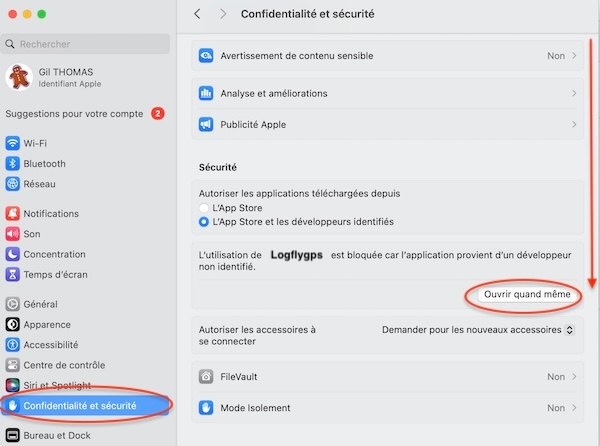
To bypass the problem, you need to go to system settings:
- Click on the Apple icon in the top left corner of the screen
- In the left panel, choose Privacy & Security
- In the right panel that appears, scroll down to see the Security option
- Locate the message Logfly.app usage is blocked...
- Click Open Anyway
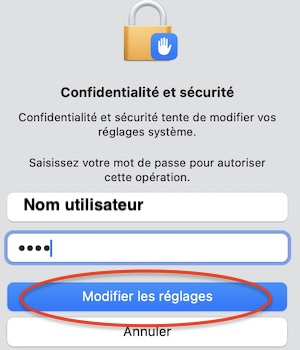
The Mac user password will be requested followed by a new confirmation!
 ==>
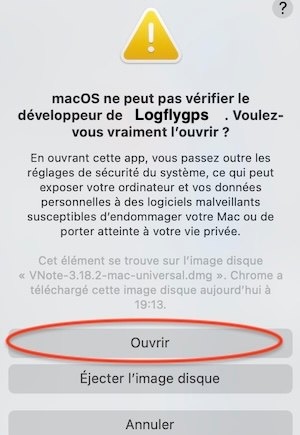
2. Execution Refusal
The application is installed but cannot be launched. Upon double-clicking on the Logfly application in the Applications folder, a new message will appear.

Click Cancel and try the solutions described below.
Solutions
- solution 1 : The most user-friendly solution. It requires loading Sentinel, a small easy-to-use utility.
- solution 2 : The fastest solution but you will need to use the Terminal.
Solution 1
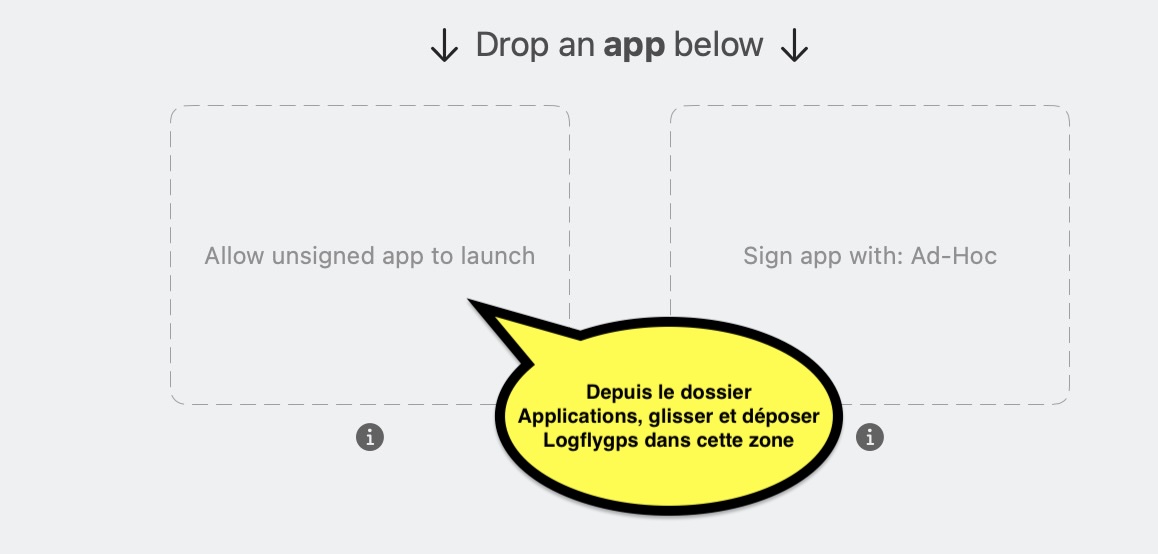
On GitHub, the open-source repository, you'll find Sentinel, a tool that allows you to regain control of GateKeeper, MacOS's security guardian. The process is very simple:
- Download the application from GitHub to ensure you have the latest version.
- Choose Sentinel.dmg and perform a standard installation with a drag-and-drop like for Logflygps
- Naturally, the classic message will appear: MacOS cannot verify... blabla... open it?
- Click Open
- You won't see the message Sentinel.app is damaged.., because the application is certified by Apple but not distributed on the Apple Store.
- Keep Sentinel running or if it's closed, launch it
- Open the Finder and place yourself in the Applications folder
- Drag-and-drop the LogflyGps app to the Allows unsigned apps to launch area
Solution 2
Requires knowledge of the Terminal. The most effective, as this command adds LogflyGps to the list of exceptions in Gatekeeper's integrated protection system. You need to open the Terminal and be connected as an administrator. If it's your personal Mac, that will always be the case. Then you'll need to enter the following code:
xattr -cr /Applications/LogflyGPS.app