Smartphone
As a PWA, Logfly can be easily installed on an Android or iOS smartphone. However, this simplicity comes with significant limitations. Unlike a native app, a PWA runs in a ‘sandbox’. For security reasons, it is not permitted to access the phone’s actual file system directly (such as /storage/emulated/0/... on Android).
For this reason, in the app settings, there will be no permissions option for ‘Files and media’.
What is it used for?
Given these limitations, is it worth installing it on a smartphone?
Yes, if you want to view your logbook, manage your equipment, etc. You’ll be able to access all of Logfly’s features in read-only mode.
In the logbook, you can calculate scores, check airspace, etc... However, you will not be able to add or delete a flight.
Choosing a device
If you want to view Logfly on a smartphone, you’ll need to transfer the logbook to it.
- Solution 1: standard copy to the smartphone. Requires a cable connection between the phone and the computer. Fairly straightforward on Windows, but problematic between an Android smartphone and a Mac
- Solution 2: transfer using file-sharing software that allows wireless transfer between the phone and the computer. There are several options available, such as Airdrop for Mac-to-iPhone transfers. Among these solutions, Blip is a file transfer app for Mac, Windows, Linux, Android and iOS. It’s as simple as Airdrop or Nearby Share but is fully cross-platform. There are no size limits, so you can send very large files. See the Blip page.
- Solution 3: synchronise the local logbook database to the cloud. Not all cloud services work in the same way. Some can be used as a virtual drive (Google Drive, Dropbox, etc.) on both your computer and smartphone. Others can be used as a virtual drive on your computer but will not appear as an additional drive on your phone (pCloud).
Logbook synchronisation
Many cloud services offer a synchronisation system (Google Drive, Dropbox, OneDrive, pCloud, iCloud, etc.). The principle behind synchronisation is to ensure that the cloud files and the local files being synchronised are always identical.
Warning
Any changes are reflected immediately... Consequently, deleting a file from the cloud will result in the destruction of the corresponding local file!
There is a free software program FreeFileSync, which allows for customisable synchronisation: one-way or two-way. The one-way method, known as mirror, is the most useful: only the local file is copied to the remote location. No changes, such as deletion or modification, made on the remote location will be reflected. Synchronisation can be performed on any location. It can enable a dual backup with a single click: cloud and backup disk, for example. See below for instructions on how to use FreeFileSync.
FreeFileSync
The procedure is described for Google Drive, which is recognised as a virtual drive on both computers and mobile phones. The procedure will be the same for other cloud systems.
- Download the installation file for your system from the freefilesync.org website
- On a Mac, you will need to grant access rights to the drive
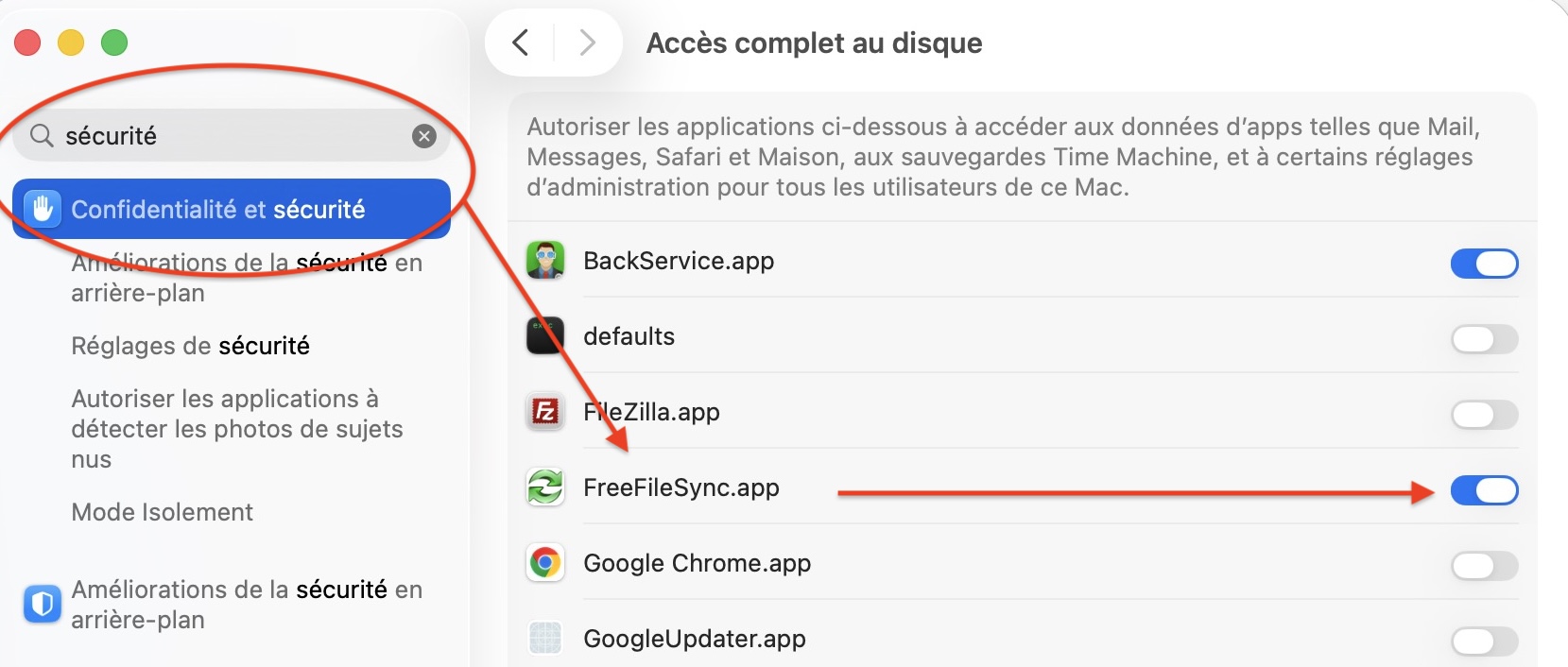
-
In the Compare column, click on + and then click the Browse button to select the folder to be backed up. In the Synchronise column, select the backup folder. If the cloud folder is mounted as a virtual drive (Dropbox, pCloud, iCloud, etc.), click the Browse button. If it is a cloud folder not mounted as a drive, such as Google Drive, click on the button with the cloud symbol.
-
For a cloud folder such as Google Drive, you will need to log in. In this case, FreefileSync opens a login page in the browser. Confirm the login and return to the FreefileSync window.
-
Click on the cogwheel to configure the backup type. By selecting Mirror, you will have an exact copy of the source folder. Any changes or deletions in the target folder will not be reflected in the source folder.

-
Once changes have been made on the computer, launch FreeFileSync and click the Synchronise button.