Syride USB
Certain models of Syride such as the Sysnav XL can be seen as simple USB keys.
Upon connecting to a computer, a menu appears. You can choose:
- To switch to charger mode
- Connect the instrument to SYS PC TOOL
- Connect it like a USB key by choosing "mass storage"
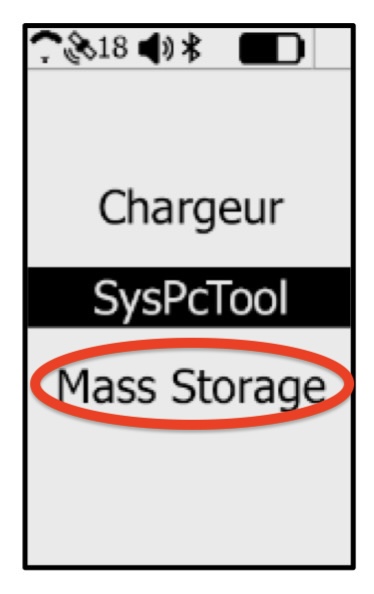
To import files into Logfly, you will need to choose the last option. The Syride should now appear as a simple USB key in the file explorer (Finder for Mac).
By clicking on Import Import / Usb GPS / Syride USB, a window with instructions appears:
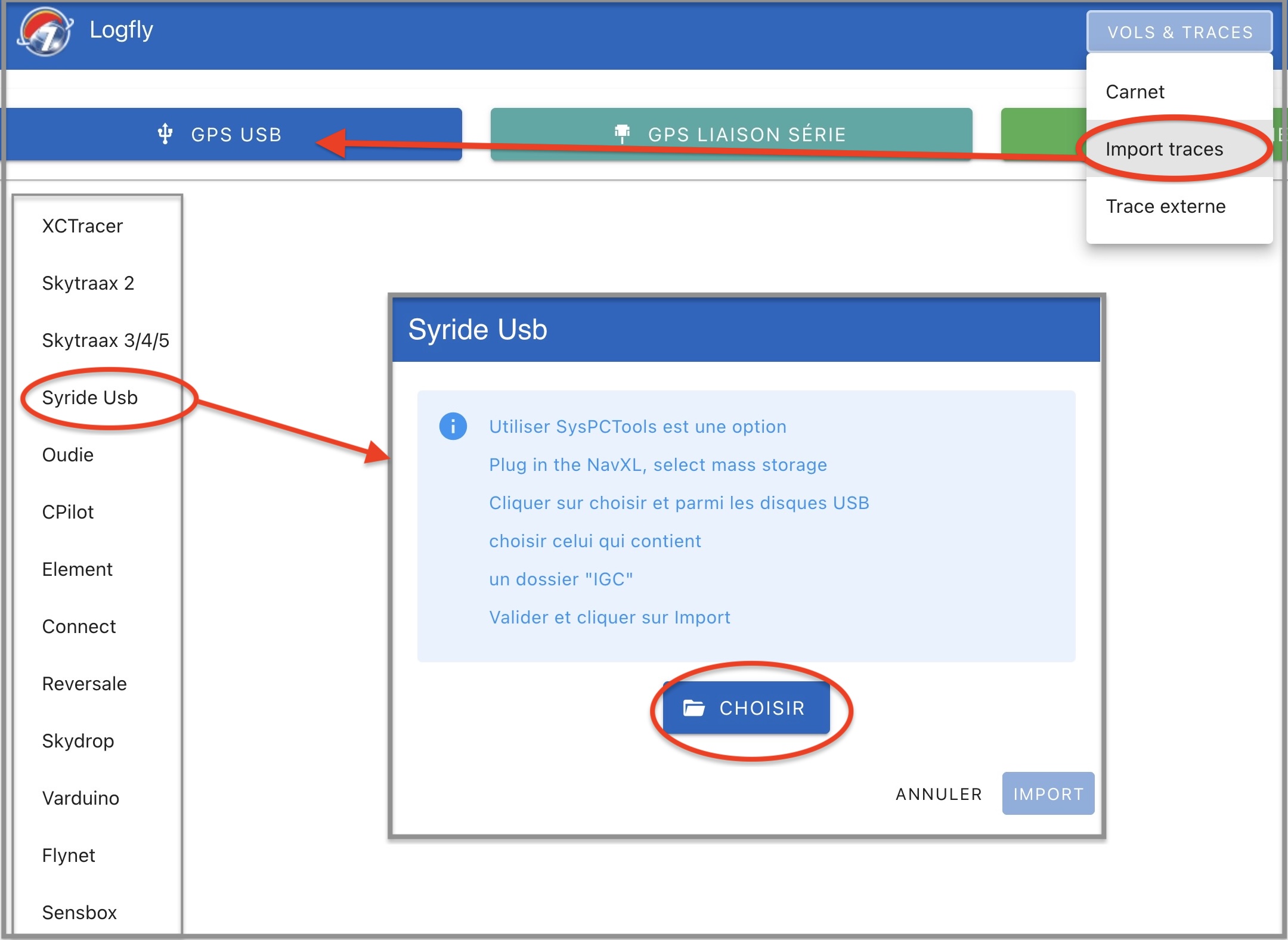
Click on the Choose button. Using the file selector, go to the Syride disk and select the IGC folder.
Authorize Logfly to explore this folder:
The name of the selected folder appears in green. Click on Import to launch the exploration process. The process may take longer. Although seen as a USB key, reading operations are slower than on a real USB key. The flight log table is displayed, just like in previous versions.
Import into the logbook
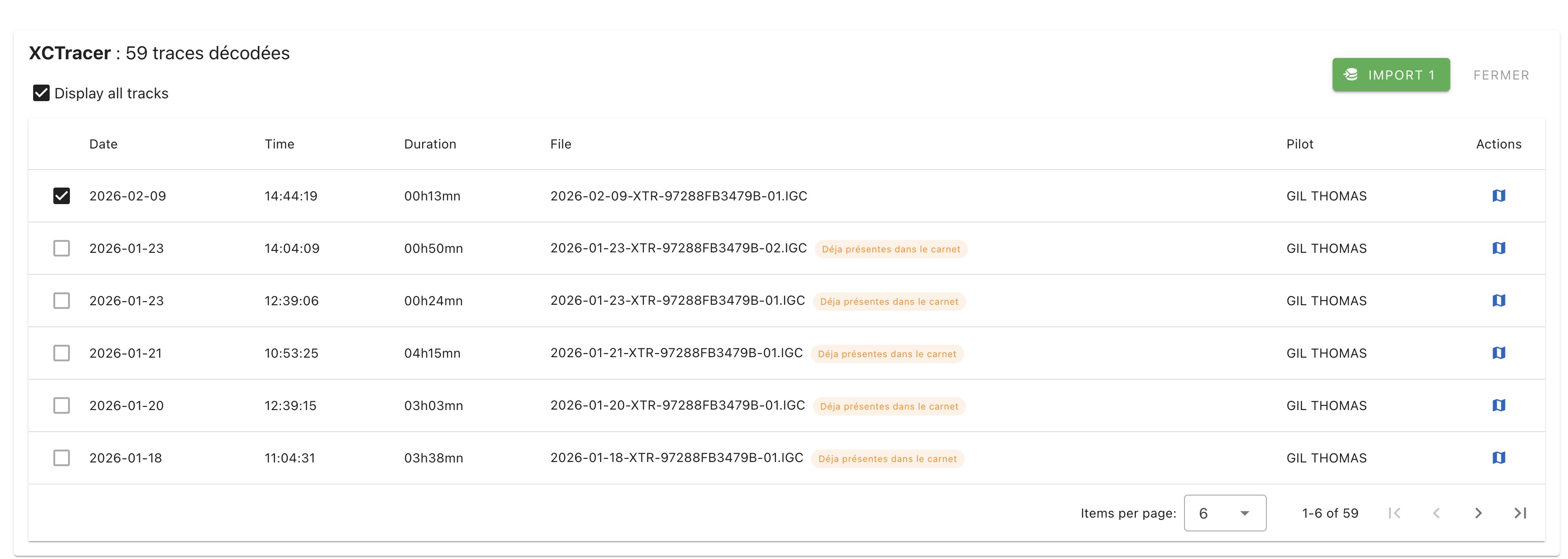
A list of flights present on the GPS is displayed. Only the flights not included in the notebook are checked. After verification, click on the green Import button that displays the number of selected flights:
Warning
Don't forget to eject the Syride disk before disconnecting it