Reversal GPS
The Reversal GPS must be connected to the computer. To recognize it by the computer:
- Unplug the Reversal (turn off)
- Press the ON key
The Reversal should now appear as a simple USB drive in the file explorer (Finder on Mac).
Warning
If you have just connected the Reversale, be patient, system recognition may take long, very long... This phenomenon is particularly significant on Mac OS where it's exacerbated by a systematic file indexing. It is possible to disable indexing to speed up reading. Consult the Mac Spotlight page
NB: These GPS were affected by a date bug since 2019. Perfectly usable but with false flight dates.
In use with a browser, the user must select the folder to explore to indicate their agreement.
Upon clicking on Import Flights -> Usb GPS -> Reversale, a window appears with instructions:
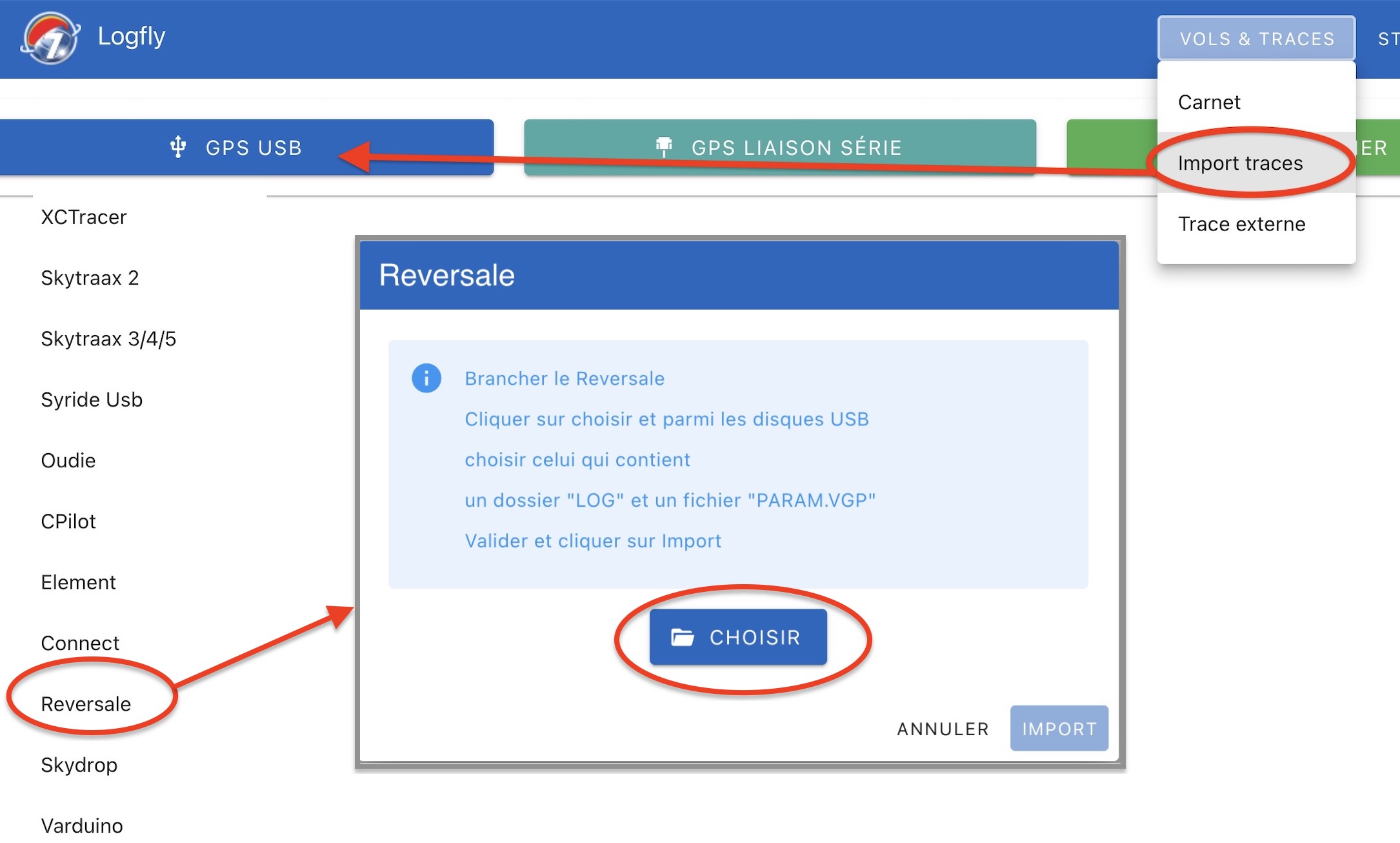
Click on the Choose button. Using the file selector, go to the Reversal disk. To recognize it:
- A LOG folder
- A PARAM.VGP folder
Authorize Logfly to access the selected folder:
The name of the selected folder appears in green. Click on Import to launch the exploration process. The process may take more or less time. Although seen as a USB drive, read operations are slower than on a real USB drive. The GPS flight table is displayed as in previous versions.
There may be another folder where flights are recorded: the COMPET folder
By default, flights are located in the LOG folder but if the COMPET folder exists, you must also explore it.
Import into the logbook
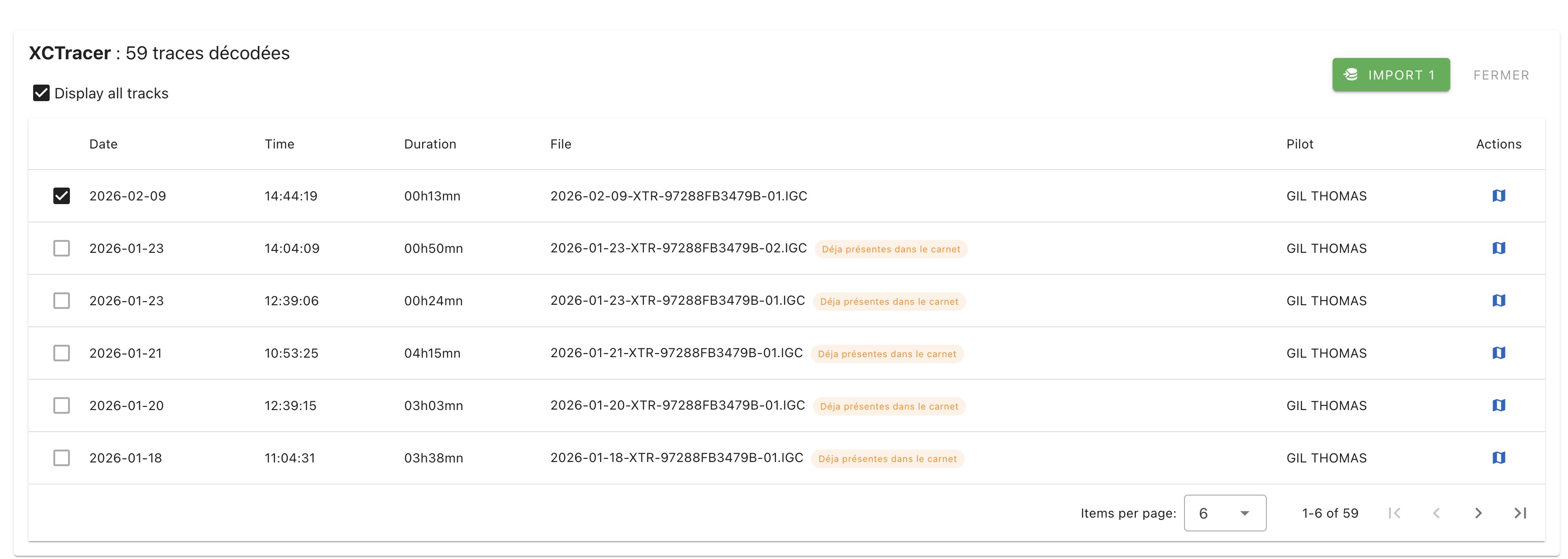
A list of flights present in the GPS is displayed. Only unchecked traces that do not appear in the logbook are selected. After verification, click on the green Import button to display the number of selected tracks.
Warning
Don't forget to eject the Reversal disk before unplugging it