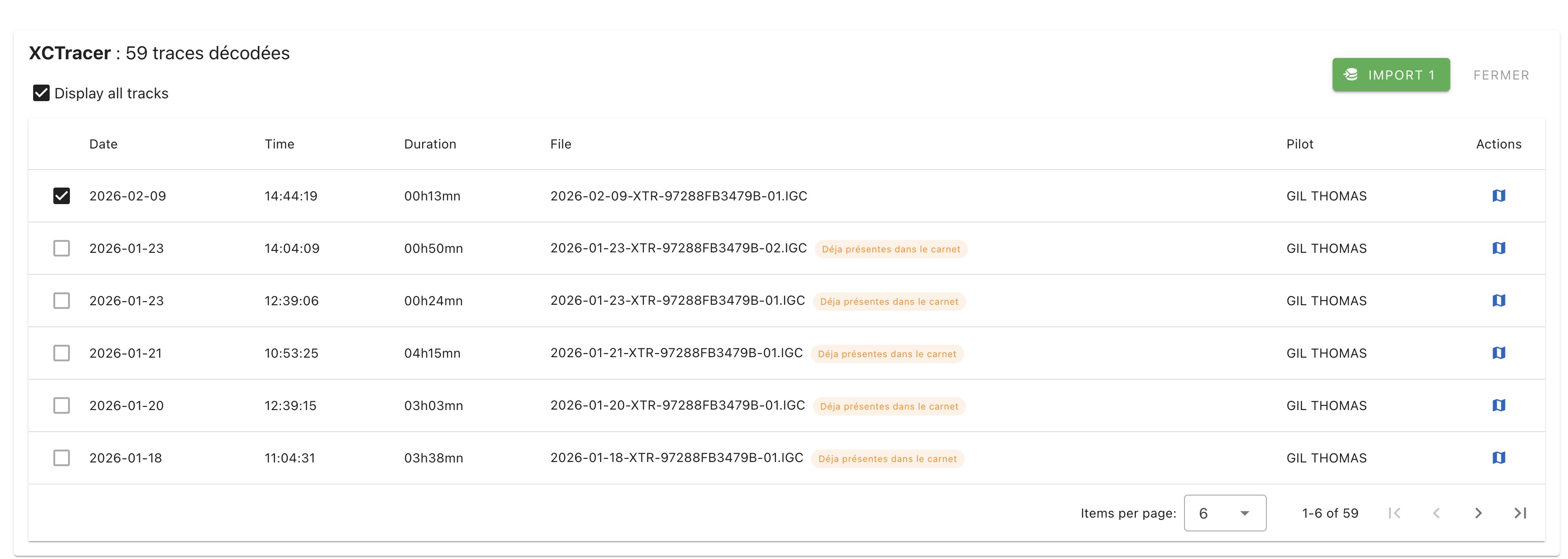
Import from folder
Data import is possible from any folder on the computer or from a folder located on an external storage device such as a hard drive, USB key, micro SD card. If your GPS is not directly supported by Logfly, you can use an external communication software to download the data and group them into a folder that will serve as the import base for Logfly.
If the data comes from a smartphone, you can use Bluetooth sharing (see Bluetooth Sharing) or a mobile-to-computer communication software such as AirDrop for iPhones or Blip a truly multi-platform application. See the Smartphone Transfer page for instructions on how to use Blip.
If using an external device, plug in the USB connection first.
In Logfly, clicking on Import -> Folder option. A window is displayed with instructions:
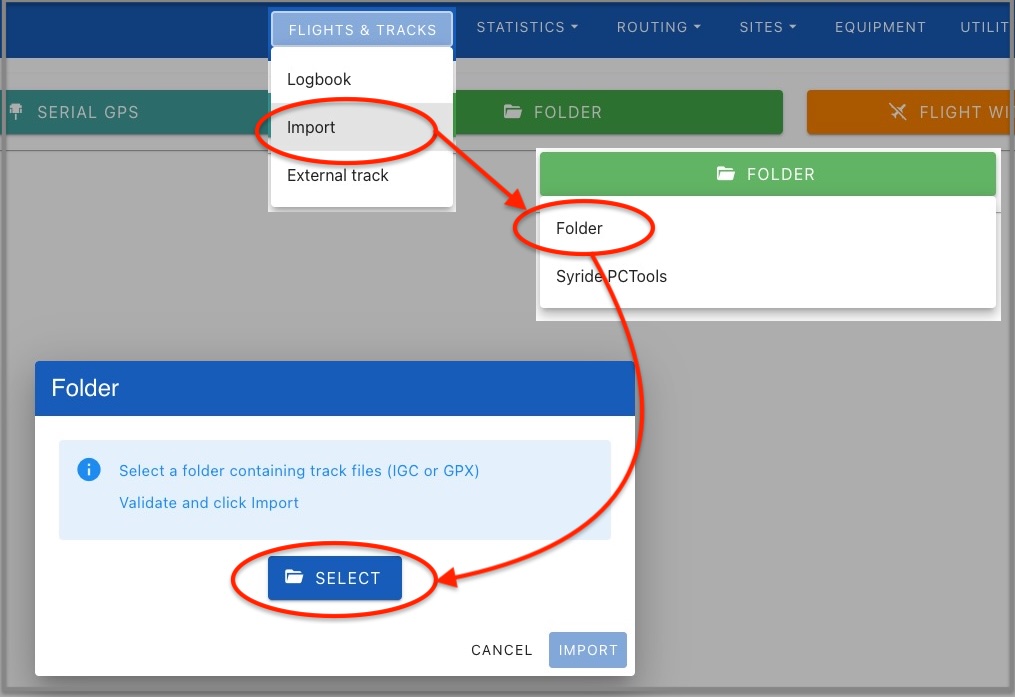
Click the Select button. Using the file selector, choose the folder containing the data to import.
Authorize Logfly to explore this folder.
The name of the selected folder appears in green. Click on the Import button to launch the exploration.
Import into the logbook
A list of flights present in the GPS is displayed. Only flights not stored in the logbook are checked. After verification, click on the green Import button displaying the number of selected records.