Logbook
Opening Page
For all details on opening the logbook at application launch, refer to the Start page.
Functionality
The flight log lists all your paragliding flights. It is fed by:
- GPS tracks imported directly from the GPS
- GPS tracks imported in file format
- Flights without GPS tracks
The window consists of two parts:
- A list of flights sorted in descending chronological order
- A map displaying the track of the selected flight
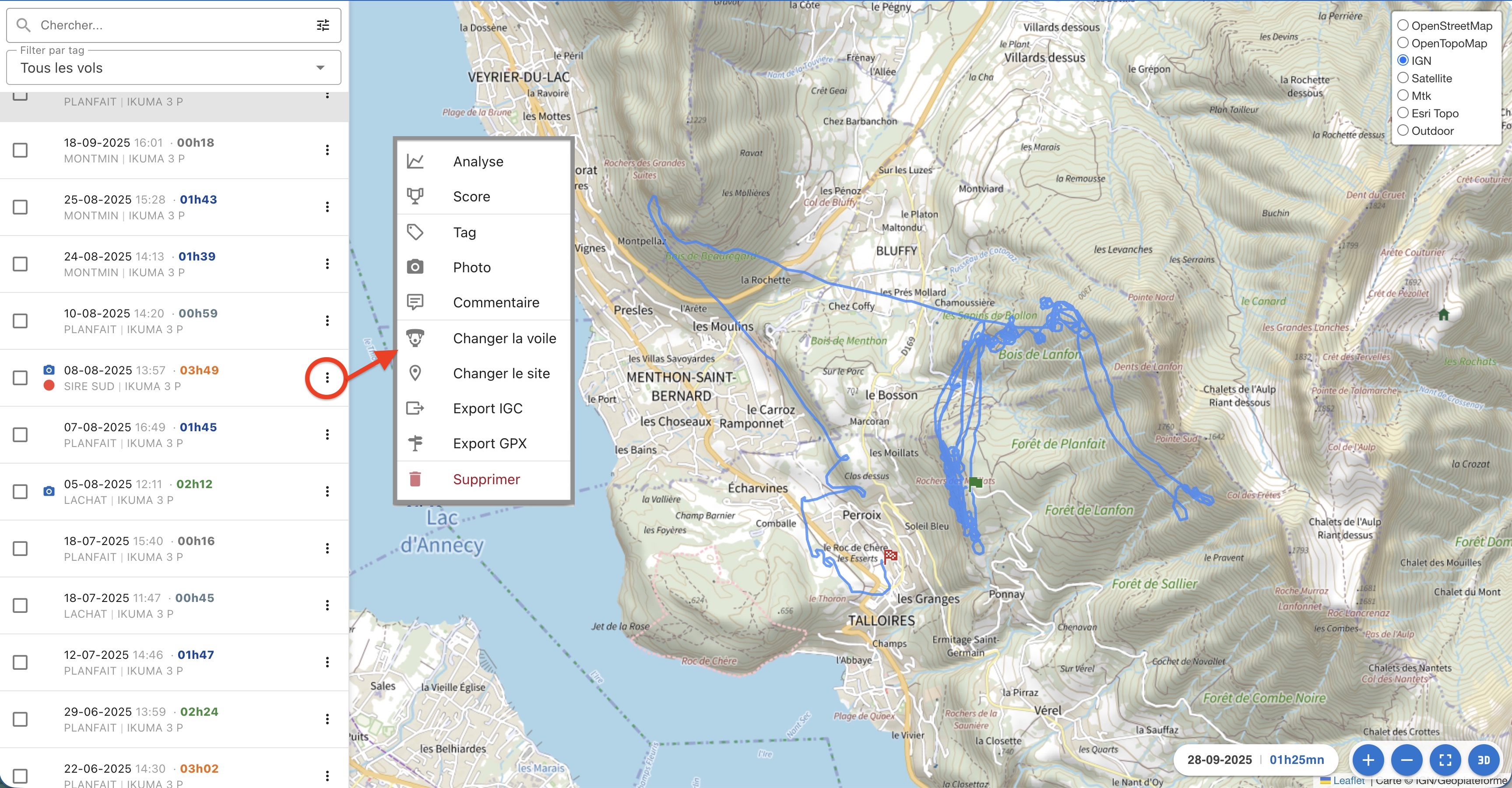
1. List of Flights
Each line in the flight list includes the following elements:
- A checkbox to select multiple flights. See below [Multi-Selection]
- A photo icon if a photo has been added to the selected flight
- A tag icon if the selected flight is marked
- Flight date
- Takeoff time
- Flight duration. The text color varies according to the duration. See below [Flight Duration]
- Takeoff site
- The glider used
- An icon
 to open a context menu. See below

2. Search
Triggers a window allowing you to filter the display of flights according to numerous criteria.
3. Context Menu
- Analysis: Displays a detailed analysis of the selected flight. Cf Analysis
- Score: Evaluates the track according to the chosen scoring rule. Cf Scoring
- Tag: Marks a flight with a tag. Cf Tag
- Photo: Adds a photo to the selected flight
- Comment: Enters a comment for the flight. A photo icon
 will appear in the list
- Change Glider: Changes the glider used on the selected flight. Cf Change Glider
- Change Site: Changes the site used for the selected flight. Cf Change Site
- Export IGC: Exports the selected track in IGC format
- Export GPX: Exports the selected track in GPX format
- Delete: Deletes the selected flight
4. Flight Map
The map displayed includes four icons in the lower right corner:
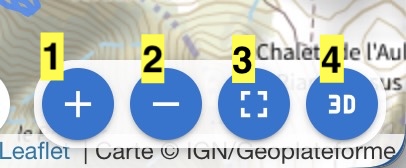
- 1. : Zoom In
- 2. : Zoom Out
- 3. Detailed Map in a new window
- 4. 3D View in a new window
Multi-Selection
The checkboxes allow you to select multiple flights. When at least one box is ticked, a red banner appears at the top of the list. It displays the number of flights and the total duration.
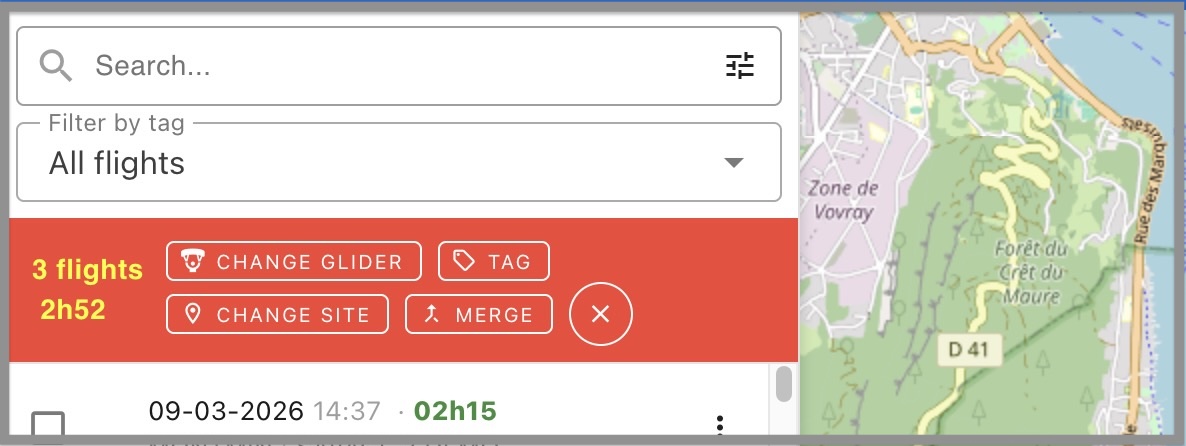
You can have the following actions on the selection:
- Change Glider: Changes the glider used on all selected flights. Cf Change Glider
- assign a tag. Cf Tag
- Change Site: Changes the site used for all selected flights. Cf Change Site
- Merge Selected Flights. Cf Flight Merging
- Export multiple tracks in a single operation. Each track will be named according to the format YYYY-MM-DD-HH-MM. They will be grouped together in a zip file
Flight Duration
The flight duration is displayed in a color varying according to the duration:
- 0-30 minutes: Dark Gray
- 30 minutes to 1 hour: Blue-Gray
- 1-1.5 hours: Light Blue
- 1.5-2 hours: Dark Blue
- 2-3 hours: Green
- 3-4 hours: Orange
- 4-5 hours: Dark Orange / Red-Brown
- 5-6 hours: Deep Red
- +6 hours: Very dark Violet and bold text - to mark the epic cross-country flight!