Bluetooth Mac
Bluetooth sharing requires two steps: pairing and file transfer authorization. In this guide, the term GPS refers to the tracking device: varioGPS or Android smartphone.
Pairing
Pairing between the computer and GPS is a necessary prerequisite that must be done only once.
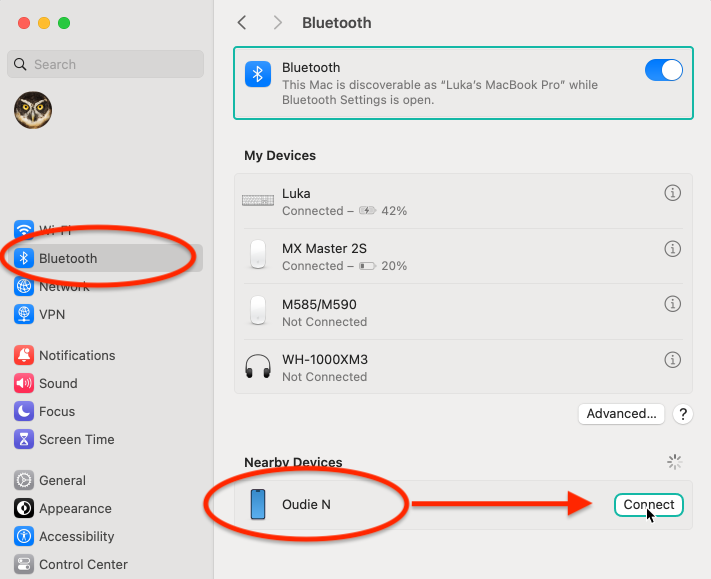
Make sure the GPS is turned on and detectable (not in sleep mode). Click on the Apple icon in the top left corner and select System Settings, then click on Bluetooth in the sidebar. You may need to scroll down the page. In the list, select the GPS, then click Connect.
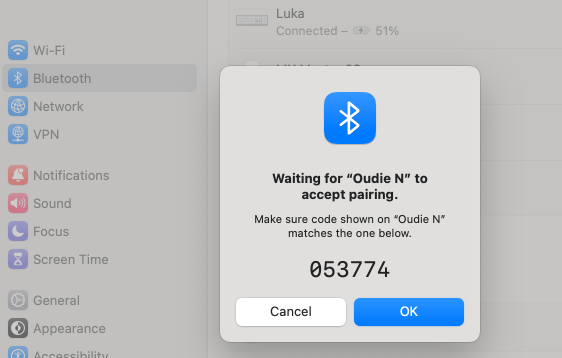
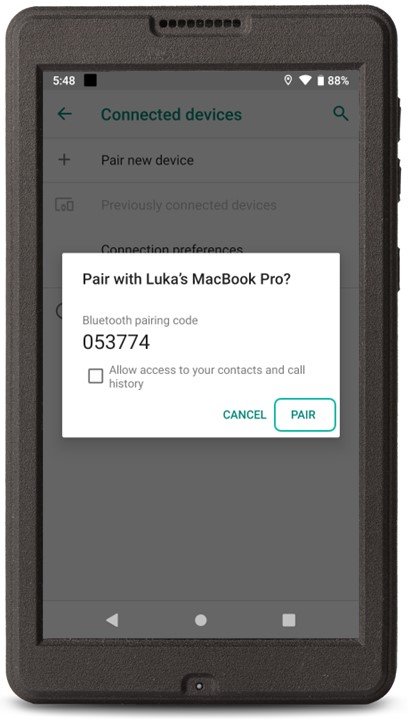
Simultaneously, a message will appear on both the computer and the GPS. These messages display a 6-digit number. Both devices must display the same digit. On the computer, click OK and click the validation button on the GPS ("Pair", "Associate" or "OK" depending on the model). You need to act quickly. If the GPS goes into sleep mode, you'll need to start over.
6-digit message on the computer
6-digit message on the GPS. In this example, an Oudie N:
Authorizations
You need to allow file exchange. Click on the Apple icon in the top left corner and select System Settings, then click General in the sidebar, and scroll down if necessary. Activate Bluetooth Sharing.
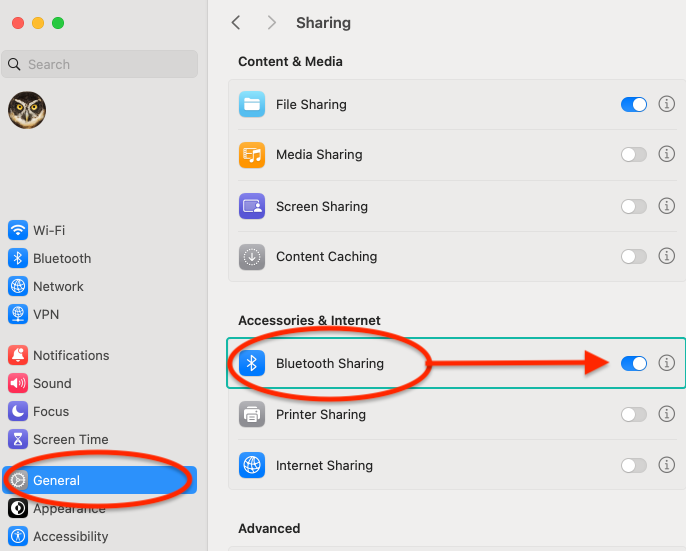
You can fine-tune the settings by clicking the information button next to "Bluetooth Sharing". There are two important options:
- When receiving items: Choose Accept and Save to save all sent items on your Mac.
- Item accepted folder: The default folder is Downloads, but you can choose a specific folder dedicated to Bluetooth transfers to store accepted files. In Logfly, you can then set this folder as the default import disk.
File Transfer
In the GPS, navigate to the desired file and in most cases, a device with Bluetooth sharing capabilities will have an option Share. It is represented by a standard icon (illustration below).
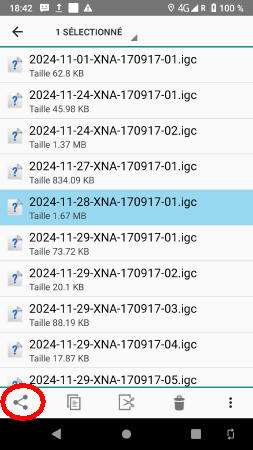
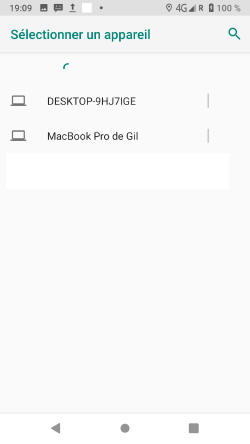
Click on this icon, choose Bluetooth, and select your computer from the list that appears on the GPS.