Bluetooth on Windows
Bluetooth sharing requires two steps: pairing and file transfer authorization. In this guide, the term GPS refers to the tracking device: varioGPS or Android phone.
Pairing
Pairing between the computer and GPS is a prerequisite that needs to be done only once.
Ensure that the GPS is turned on and detectable (Bluetooth enabled). Launch the Settings application, select the option Devices, then the option Bluetooth and other devices. You can also type bluetooth directly in the search bar.
Click on Add device. For the device type, choose Bluetooth. The GPS should appear in the Add a device window.
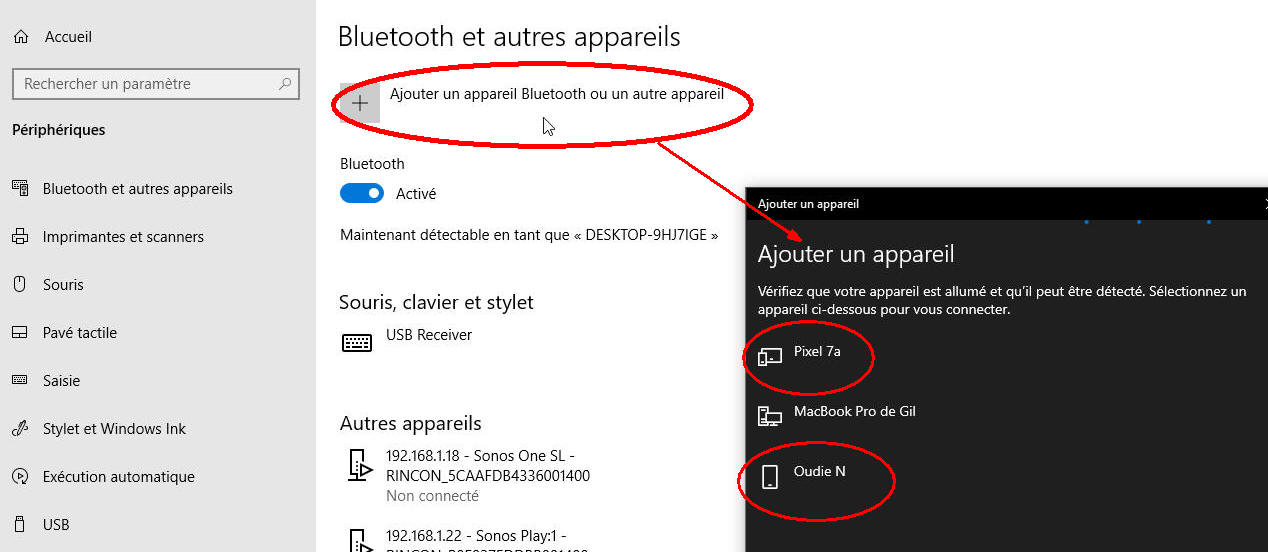
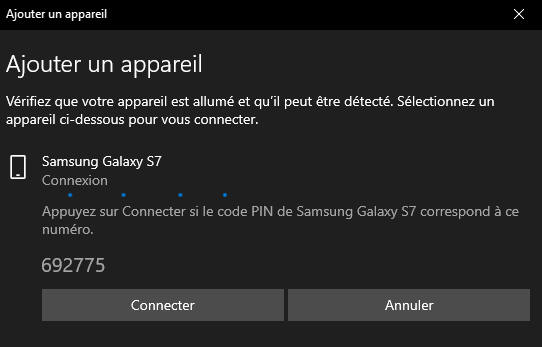
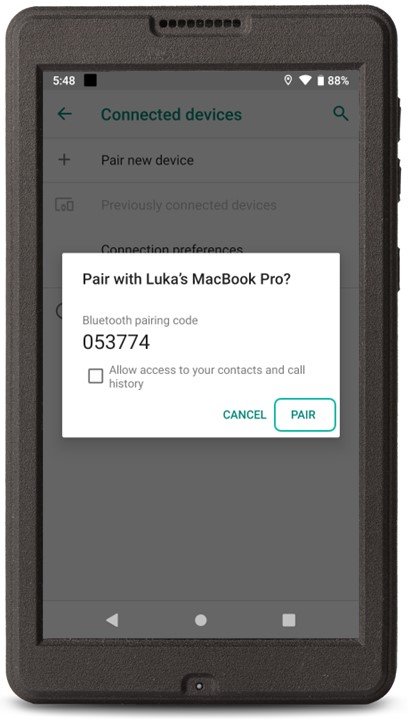
After clicking on the selected device, a message will appear simultaneously on the computer and the GPS, displaying a 6-digit number. Both devices must display the same number. On the computer, click on Connect and click on the validation button on the GPS ("Pair", "Associate" or "OK" depending on the model). You need to act quickly. If the GPS goes into standby mode, you'll need to restart the process.
6-digit message on the computer
6-digit message on the GPS. In this example, an Oudie N:
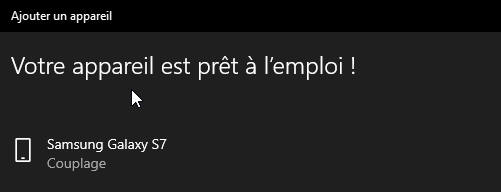
A "Your device is ready to use" message will appear.
File Transfer
1. Computer
Launch the Settings application, select the option Devices, then the option Bluetooth and other devices. You can also type bluetooth directly in the search bar.
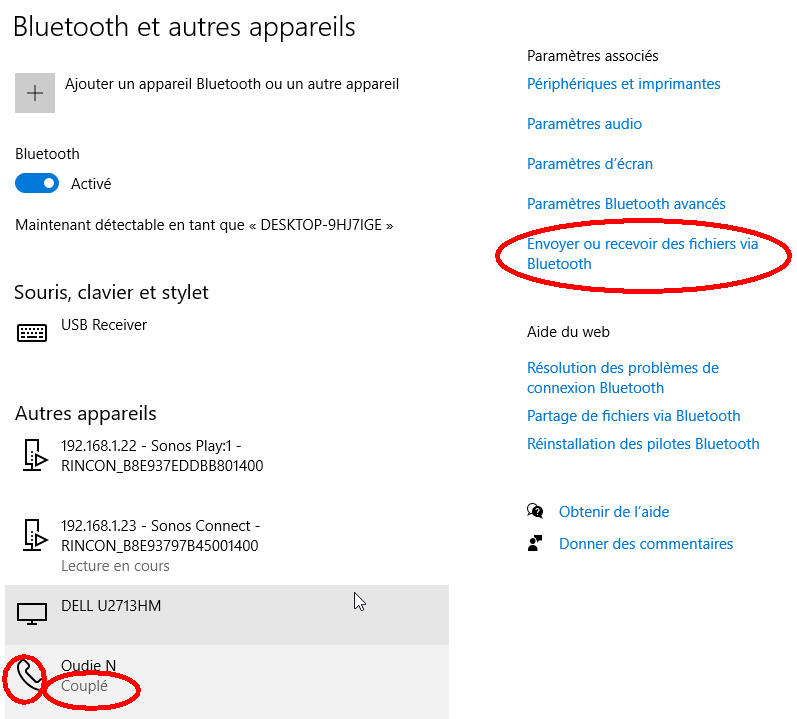
Your device will appear in the Other devices list. If a phone icon and the word "Connected" are not associated with it, click on them to display these mentions. Then, click on the Send or receive files via Bluetooth option.
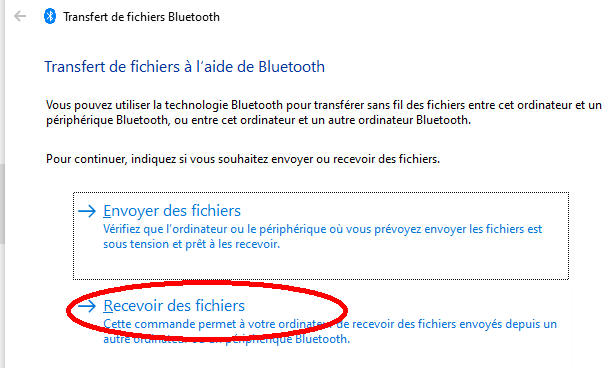
In the window that appears, select the Receive files option.
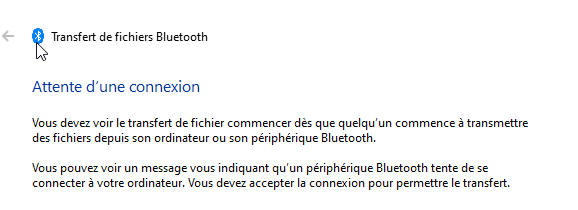
A waiting window will appear.

2. GPS
Select the desired file. In principle, a device allowing Bluetooth sharing will have an option Share. It is usually symbolized by a standard icon (illustration below).
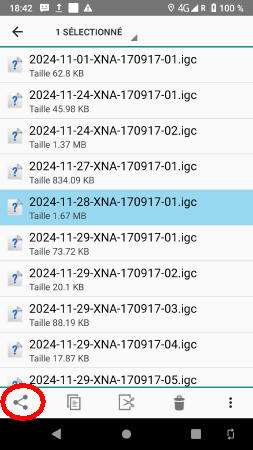
Click on this icon, choose Bluetooth, and select your computer from the list that appears on the GPS.
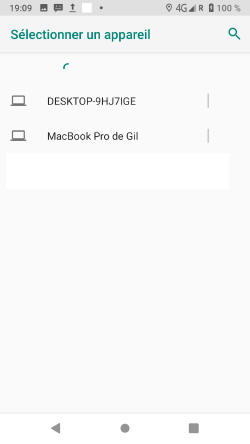
3. Computer
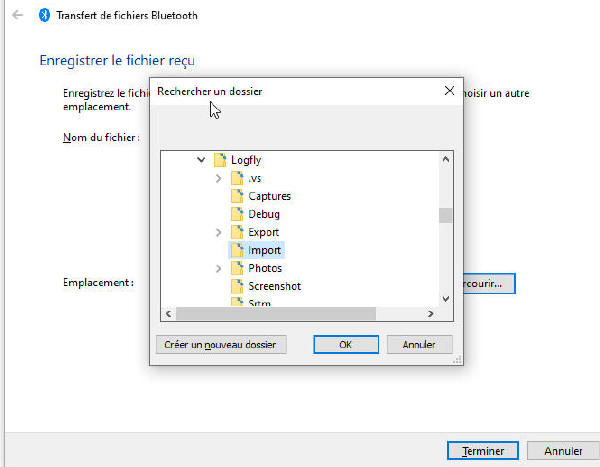
The window displays the transfer progress. It then offers to save the received file. You can modify the default location proposed by clicking on the Browse button.
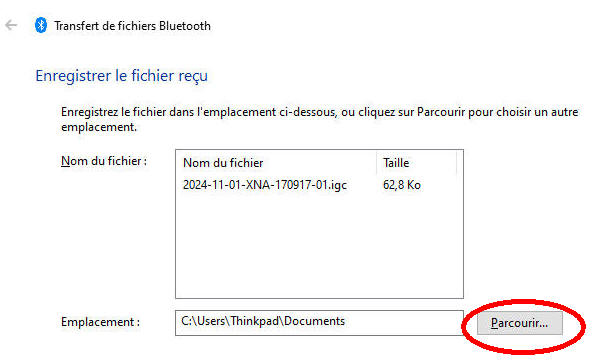
Select the folder that will store the tracks on the computer. This folder will become the default location for future use.